1. Guides
  2. Improving the Performance of Your Dashboards

Improving the Performance of Your Dashboards

TL;DR
  • Slow dashboards are usually a database architecture problem, not a frontend or charting library problem.
  • Running analytical queries on your transactional database degrades your entire application's performance and reliability.
  • Moving these analytical queries to ClickHouse yields 10–100x faster dashboards

This guide will:

  1. Help you recognize when OLTP has become your analytics bottleneck
  2. Show an incremental path to move analytical workloads to OLAP
  3. Walk through shipping the change end-to-end with MooseStack + ClickHouse
Overview
Business context, warning signs, and what success looks like
Tutorial
Step-by-step: port dashboard logic to ClickHouse via MooseStack

Overview

What this guide is for

This guide is for you if you already have customer-facing dashboards or reports in production, and you're experiencing:

Common symptoms

Charts/metrics take 5+ seconds to load

Users stare at spinners past the 3-second attention threshold, causing them to lose focus, abandon tasks, or complain about a slow product.

Small report changes are expensive

Adding a new report or filter is too risky and complex to build, so engineering prioritizes other features instead.

Reporting traffic overwhelms production OLTP

Analytics queries cause collateral damage to core app workflows.

The root cause of slow dashboards is usually analytical queries (aggregations, wide table scans, complex joins) running on your existing transactional database, which compete with the core transactional workloads that power the rest of your application.

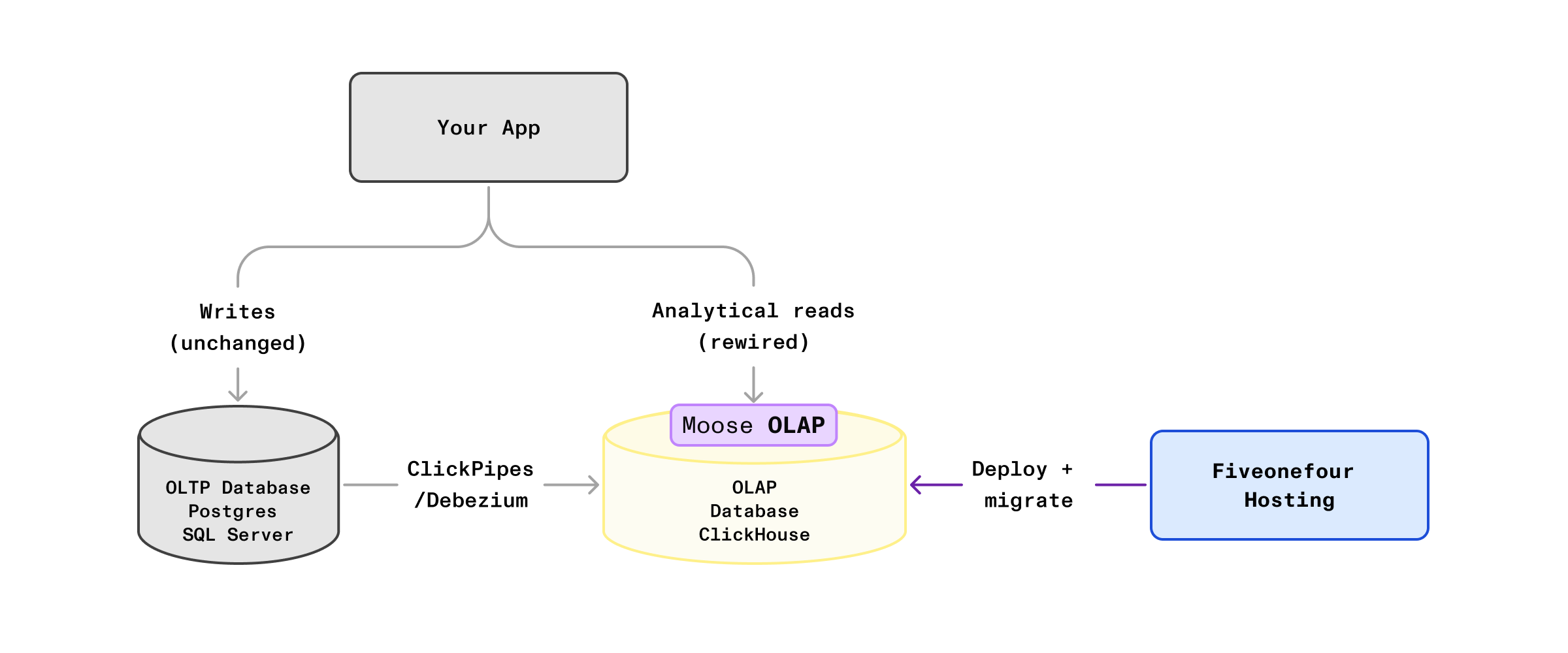
This guide lays out a step-by-step path to offload those analytical workloads to a purpose-built analytical database (ClickHouse), that can be done incrementally and without needing to rearchitect your existing application.

Why this matters

Customer-facing analytics becomes mission-critical once users depend on it to understand their behavior, progress, or outcomes. Slow or unreliable dashboards drive down engagement: lower retention, higher churn, and direct revenue impact as users stop trusting your product for insights.

Case study: F45's LionHeart experience

LionHeart is where F45's most engaged members track workout performance and progress. Their original OLTP-backed implementation meant they had to ship reports as static images rather than interactive charts.

After migrating the analytics backend to an OLAP architecture (Fiveonefour stack), LionHeart shipped fast, interactive dashboards in weeks:

  • Outcome: 70% increase in user satisfaction, and over 1 full star increase in the F45 App Store rating

Why you haven’t solved it yet

Most teams don't start with a dedicated analytical database (OLAP), and it's often the right call early on.

Why teams delay adopting OLAP

The OLTP path is the highest-ROI path early on

Your transactional database already powers your core application workflows. Early on, it can handle analytics queries too, so adding a second database delivers little marginal value.

Performance doesn't degrade right away

OLTP-backed analytics can look "fine" until data volume and concurrency cross a threshold (typically 10-50M rows, depending on query complexity and concurrent users).

Shipping the first version is fastest on existing infrastructure

The quickest path to value is usually building reporting directly on the systems you already run and understand.

A second database is a real operational commitment

Adding OLAP introduces new reliability, cost, security, and ownership concerns—not just a new query engine.

Most OLAP stacks weren’t built for modern software engineering workflows

Tooling can feel data-engineering-native, slowing adoption when the builders are primarily software engineering teams building on a application stack (e.g., Next.js, React, Ruby on Rails, etc.).

While it's common to delay adopting OLAP, there's an inflection point at which it becomes a real business risk. OLAP migrations are non-trivial and can take months with traditional data engineering tooling. If you wait too long to start or choose tooling with a steep learning curve, you may not move fast enough to fix the problem before users start churning.

When to pull the trigger

Users want more metrics, filters, breakdowns, or longer time ranges in their dashboards. But engineering can't deliver these seemingly small changes without risking the transactional workloads your core product depends on. Load times creep up. Customers complain. Before long, those complaints surface in retention metrics, support tickets, and sales calls.

Throwing more hardware at the problem either isn't possible or is prohibitively expensive. Even when feasible, this approach only buys temporary relief. The underlying issue is certain to resurface.

What success looks like

When this works, the impact shows up in both product velocity and system reliability.

Dashboards stay fast as data grows, instead of degrading over time. Analytical workloads run on dedicated infrastructure, so your transactional database can focus on what it does best.

Engineering can ship new dashboards, metrics, and breakdowns as routine product work—not risky, backlog-bound projects. Features that used to require careful capacity planning become straightforward additions.

Tutorial: Migrate Your Dashboard to ClickHouse

This tutorial assumes you already have a dashboard or report running in production, and you want to make it faster using OLAP best practices. You'll work through:

  1. Setting up your local dev environment
  2. Migrating your dashboard business logic from OLTP to MooseStack/ClickHouse
  3. Shipping your changes to production on Boreal Cloud

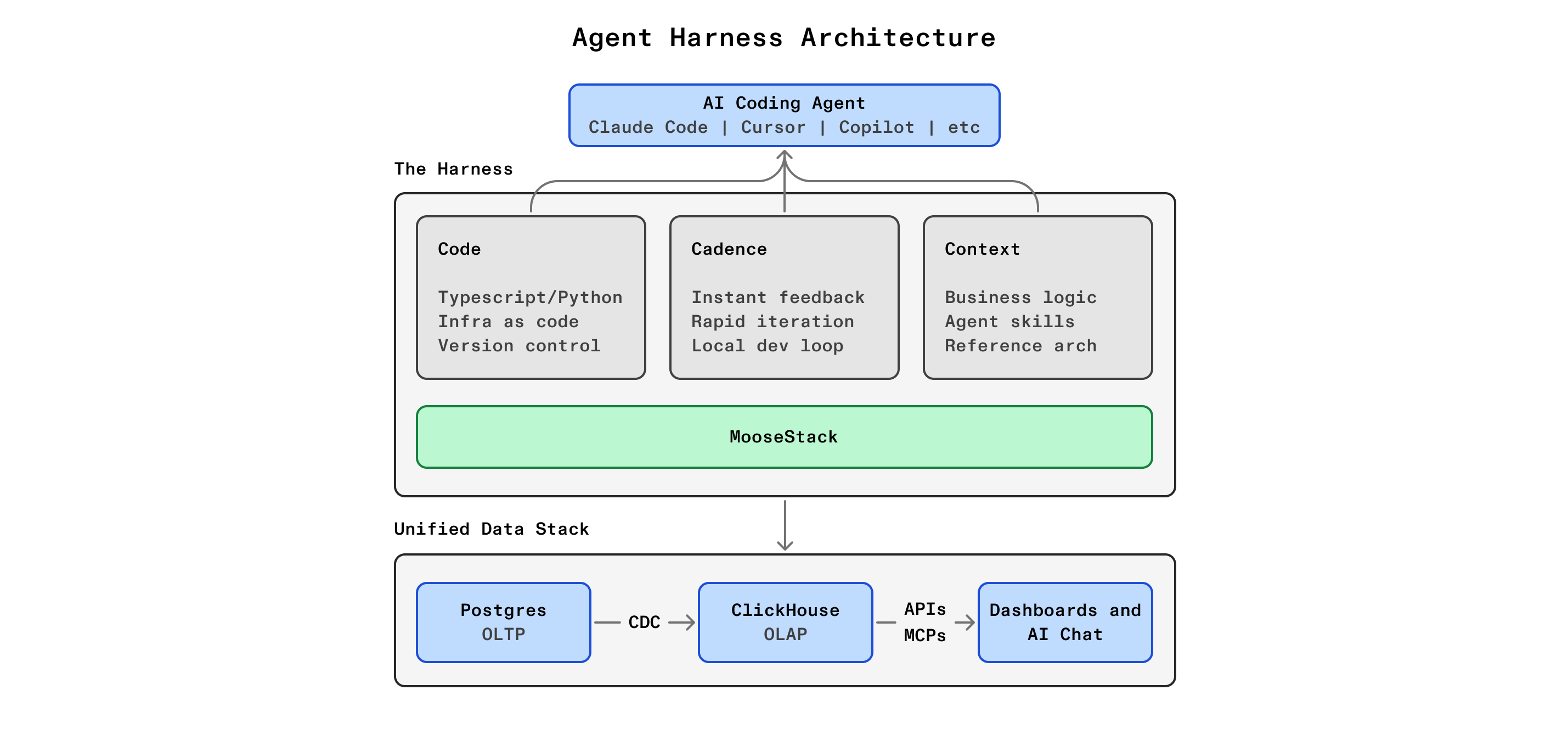
AI copilot (optional but recommended): We recommend using an AI copilot to accelerate the migration to handle complex query translations. However, you can complete every step manually if you prefer. Any AI-enabled editor (Claude Code, Cursor, Codex, Opencode, Github Copilot, Windsurf, etc.) will work.

Language: This guide is written for TypeScript developers. Python developers can follow along—the concepts translate directly, and MooseStack supports both languages. The main differences are syntax and framework-specific patterns. If you'd like to see Python-specific examples, let us know and we'll prioritize creating them.

Setting up your development environment

In this section, you'll:

  • Install MooseStack and its dependencies
  • Initialize or clone your MooseStack project
  • Set up developer and AI agent tools (MCP + Language Server)
  • Seed your development environment with sample data

Installing MooseStack

Prerequisites

Node.js 20+

Check your version with `node --version`.

Download

Docker Desktop

For local ClickHouse and Redpanda. Make sure it's running before proceeding.

Download

macOS, Linux, or WSL 2+ on Windows

Windows users: see the appendix for WSL 2 setup instructions.

Install MooseStack

bash -i <(curl -fsSL https://fiveonefour.com/install.sh) moose
Make sure to restart your terminal after installing MooseStack.

MooseStack is installed globally, so you need to restart your terminal to make the moose command available.

Add MooseStack to your existing application

If you have an existing monorepo with your application (e.g., a Next.js frontend with an API backend), you can add MooseStack as a subdirectory:

Step 1: Initialize MooseStack in a subdirectory

From your monorepo root:

mkdir moosestack
cd moosestack
moose-cli init . typescript

Step 2: Update your PNPM workspace configuration

Edit your root pnpm-workspace.yaml to include the moosestack directory:

packages:  - .                    # Your main app (e.g., Next.js)  - moosestack                # MooseStack project

Step 3: Configure the MooseStack package

Edit moosestack/package.json to set it up as a workspace package:

{  "name": "moosestack",  "private": true,  "version": "0.0.1",  "main": "./dist/index.js",  "types": "./dist/index.d.ts",  "exports": {    ".": {      "types": "./dist/index.d.ts",      "default": "./dist/index.js"    }  },  "scripts": {    "build": "moose-cli build",    "dev": "moose-cli dev",    "moose": "moose-cli"  },  "dependencies": {    "@514labs/moose-lib": "latest",    "typia": "^10.1.0"  },  "devDependencies": {    "@514labs/moose-cli": "latest",    "@types/node": "^24",    "typescript": "^5"  }}

Step 4: Add the pnpm configuration to your root package.json

Edit your root package.json to add the pnpm.onlyBuiltDependencies section (this ensures required native/built dependencies are handled correctly by PNPM):

{  "pnpm": {    "onlyBuiltDependencies": [      "@confluentinc/kafka-javascript",      "@514labs/kafka-javascript"    ]  }}

Run your Moose Development Server

Ensure Docker Desktop is running first.

Docker Desktop

Navigate to your MooseStack project directory and run the development server:

cd moosestack  # or wherever your moose project is
pnpm install
moose dev

If the development server runs correctly, you'll see a list of the available API endpoints print:

📍 Available Routes:  Base URL: http://localhost:4000   Static Routes:  METHOD  ENDPOINT                                           DESCRIPTION  ------  --------                                           -----------  GET     /admin/inframap                                    Admin: Get infrastructure map  GET     /admin/reality-check                               Admin: Reality check - provides a diff when drift is detected between the running instance of moose and the db it is connected to  GET     /health                                            Health check endpoint  GET     /ready                                             Readiness check endpoint...

And your local services will be running in Docker containers:

Docker Services

Setting up developer / agent supporting services

These services let your AI copilot query your local database, inspect infrastructure, and validate SQL directly:

  1. Moose Dev MCP server: Lets your AI copilot query your local ClickHouse database, inspect logs, and explore infrastructure using natural language. Your copilot can verify query results, debug issues, and validate migrations without you copying/pasting commands.
  2. Language Server (LSP) for MooseStack TypeScript: Validates SQL syntax within your MooseStack code in real-time, catching errors before you run queries. (Coming soon, see appendix).

Moose Dev MCP setup

To install the Moose Dev MCP with VS Code 1.102+, add this to your project's .vscode/mcp.json or User Settings:

{  "servers": {    "moose-dev": {      "type": "http",      "url": "http://localhost:4000/mcp"    }  }}

Confirm the server is running and integrated with VSCode by running MCP: List Servers command from the Command Palette.

  • For other options to install with VSCode, see the VSCode docs.
  • For installation instructions for other IDEs / AI coding assistants, like Claude Code, Windsurf, and Cursor, see the MooseStack docs.

Change data capture (CDC)

For your dashboards to show accurate, real-time data, your ClickHouse analytics database needs to stay in sync with your production MSSQL database. Change Data Capture (CDC) streams every insert, update, and delete in real time. Your reports always reflect the latest state without custom sync jobs or batch ETL scripts.

This section walks you through setting up CDC using Debezium. Before you start, make sure you have your MSSQL connection credentials (host, port, username, password, database name).

You'll complete 3 main steps:

  1. Configure MSSQL Server for CDC
  2. Configure ingestion pipelines to land CDC events into ClickHouse tables (via MooseStack)
  3. Deploy Debezium Server to your environment

How CDC works

Here's how CDC tracks changes to a customers table:

1. App executes: UPDATE dbo.customers SET status='active' WHERE customer_id=123
2. Transaction Log: Log record written (LSN: 00000042:00000123:0001, BEFORE: 'inactive', AFTER: 'active')
3. Capture Job: Reads log, finds change to CDC-enabled table dbo.customers
4. Tracking Table: INSERT INTO cdc.dbo_customers_CT (__$operation=4, customer_id=123, status='active', ...)
5. Debezium: Polls tracking table, creates JSON: {"op":"u", "before":{...}, "after":{"status":"active"}}
6. HTTP Sink: Receives POST with change event payload

MSSQL Server CDC Configuration

Configure your MSSQL Server for CDC before proceeding. For detailed setup instructions, see the Debezium SQL Server Connector documentation.

Key steps:

  1. Enable CDC at the database level: EXEC sys.sp_cdc_enable_db;
  2. Enable CDC on each table you want to track: EXEC sys.sp_cdc_enable_table @source_schema = N'dbo', @source_name = N'your_table', @role_name = NULL;
  3. Verify SQL Server Agent is running (required for CDC capture jobs)

Once CDC is configured, proceed to set up the MooseStack ingestion pipeline below

CDC via Pushing to Moose Ingest API

This section describes the CDC architecture used when Debezium cannot connect directly to Kafka (for example, due to firewall rules, network segmentation, or cloud provider restrictions). If your Debezium instance can reach Kafka directly, you can configure CDC to stream changes directly into Kafka topics instead of using the HTTP ingest pattern shown here.

In this architecture, all changes from your MSSQL database tables are captured using Debezium and sent to a single, Moose-managed Kafka (or Redpanda) Stream via a Moose-managed HTTP Ingest API endpoint (there is no per-table endpoint or per-table ingest stream at this stage).

From there, CDC events are explicitly fanned out based on their metadata. Each MSSQL source table ultimately maps to:

  • one table-specific Moose Stream, and
  • one downstream ClickHouse landing table.

This architecture implements a Streaming Function that inspects each raw CDC event from the shared stream to identify the source table and routes it to the appropriate table-specific stream. Each of these streams feeds a corresponding ClickHouse table.

To summarize, the high level data flow is:

  • Debezium → single ingest API endpoint
  • Ingest API → shared CDC stream
  • Streaming function → table-specific streams
  • Table-specific streams → ClickHouse tables

Step 0: Prerequisites

Before continuing, confirm:

  • MSSQL Server CDC is enabled and working
  • MooseStack is running locally
  • You can reach the Moose Ingest API from your Debezium environment
  • Port 443 is available for egress

If CDC is not enabled yet, complete the MSSQL Server CDC Configuration section first.

Step 1: Add a Moose Ingest API Endpoint for CDC Events

This endpoint will receive CDC events from Debezium.

In your MooseStack project, create a new Ingest API sink that accepts Debezium ChangeEvent payloads:

File location: moosestack/src/cdc/DebeziumChangeEvent.model.ts

import { IngestApi, Stream, DeadLetterQueue, Int64 } from "@514labs/moose-lib"; /** * Debezium SQL Server Change Event Structure * Documentation: https://debezium.io/documentation/reference/stable/connectors/sqlserver.html * * This model represents the standardized event structure sent by Debezium * for all change data capture events from SQL Server. */ export interface DebeziumSource {  version: string;  connector: string;  name: string;  ts_ms: Int64; // Timestamp in milliseconds (epoch)  snapshot?: string;  db: string;  sequence?: string;  schema: string;  table: string;  change_lsn?: string;  commit_lsn?: string;  event_serial_no?: number;} export interface DebeziumTransaction {  id?: string;  total_order?: number;  data_collection_order?: number;} /** * Main Debezium Change Event Payload * The 'before' and 'after' fields contain the actual row data * and their shape varies by table, so we use Record<string, any> */export interface DebeziumChangeEvent {  // Row data before the change (null for INSERT operations)  before?: Record<string, any> | null;   // Row data after the change (null for DELETE operations)  after?: Record<string, any> | null;   // Source metadata identifying where this change came from  source: DebeziumSource;   // Operation type: 'c' = create, 'u' = update, 'd' = delete, 'r' = read (snapshot)  op: string;   // Timestamp in milliseconds  ts_ms: Int64;   // Transaction metadata (optional)  transaction?: DebeziumTransaction | null;} /** * Full Debezium Event Envelope (what actually gets POSTed by Debezium) * Debezium sends events with both schema and payload wrapped together */export interface DebeziumEventEnvelope {  schema?: Record<string, any>;  payload: DebeziumChangeEvent;} /** * Stream for CDC events - fans out to table-specific streams via streaming function */export const DebeziumChangeEventStream = new Stream<DebeziumEventEnvelope>("DebeziumChangeEvent"); /** * Dead Letter Queue for failed Debezium events */export const DebeziumChangeEventDLQ = new DeadLetterQueue<DebeziumEventEnvelope>(  "DebeziumChangeEvent_DLQ"); /** * Ingestion API endpoint for Debezium CDC events * Creates: POST /ingest/DebeziumChangeEvent * * Debezium sends events here, which flow through the streaming function * to fan out to table-specific Redpanda topics. */export const DebeziumChangeEventIngestApi = new IngestApi<DebeziumEventEnvelope>(  "DebeziumChangeEvent",  {    destination: DebeziumChangeEventStream,    deadLetterQueue: DebeziumChangeEventDLQ,  });

Step 2: Map Source Tables to Moose Streams

Before implementing the streaming function, define an explicit mapping between MSSQL source table names and their corresponding Moose Streams.

File location: moosestack/src/cdc/tableStreamMap.ts

import { ProductStream } from "../models/Product.model";import { CustomerStream } from "../models/Customer.model";import { OrderStream } from "../models/Order.model";import { OrderItemStream } from "../models/OrderItem.model"; export const TABLE_STREAM_MAP: Record<string, any> = {  products: ProductStream,  customers: CustomerStream,  orders: OrderStream,  order_items: OrderItemStream,};

This mapping is what makes the fan-out deterministic and ensures each source table's changes flow through the correct stream and into the correct ClickHouse table.

Step 3: Add Streaming Function to the API Endpoint

This function acts as our fanout point.

When cdc events are posted from Debezium, we need to read the table name from the payload and route the cdc event to the correct stream.

File location: moosestack/src/cdc/processDebeziumEvent.ts

import {  DebeziumEventEnvelope,  DebeziumChangeEventStream,} from "./DebeziumChangeEvent.model";import { TABLE_STREAM_MAP } from "./tableStreamMap"; /** * Process and route CDC events to table-specific Redpanda topics * * ReplacingMergeTree CDC fields: * - ts_ms: Version column from payload.ts_ms (used to determine newest row) * - isDeleted: 1 for delete operations, 0 otherwise (ReplacingMergeTree collapses deleted rows) */export default async function processDebeziumEvent(envelope: DebeziumEventEnvelope): Promise<void> {  console.log(`[CDC] Processing event: ${JSON.stringify(envelope)}`);   const event = envelope.payload;  const { source, op, before, after, ts_ms } = event;   const sourceTable = source.table;  const targetStream = TABLE_STREAM_MAP[sourceTable];   // Unknown table - log and skip  if (!targetStream) {    console.warn(`[CDC] Unknown table: ${sourceTable}`);    return;  }   // Determine data and deleted flag based on operation type  let rowData: Record<string, any> | null = null;  let isDeleted: number = 0;   switch (op) {    case "c": // CREATE    case "r": // READ (snapshot)    case "u": // UPDATE      rowData = after ?? null;      isDeleted = 0;      break;    case "d": // DELETE - use 'before' data since 'after' is null for deletes      rowData = before ?? null;      isDeleted = 1;      break;    default:      console.warn(`[CDC] Unknown op: ${op} for ${sourceTable}`);      return;  }   if (!rowData) {    console.warn(`[CDC] No data in ${op} event for ${sourceTable}`);    return;  }   // Add CDC metadata columns for ReplacingMergeTree  // Ensure isDeleted is explicitly UInt8 (0 or 1) for ClickHouse  // Use bitwise OR with 0 to ensure it's an integer, not Float64  const data = {    ...rowData,    ts_ms: ts_ms, // Version column - determines which row is newest    isDeleted: (isDeleted | 0) as 0 | 1, // isDeleted flag - 1 for deletes, 0 otherwise (UInt8)  };   // Publish directly to table's Redpanda topic  try {    await targetStream.send(data);    console.log(      `[CDC] ${op.toUpperCase()} ${sourceTable} → Redpanda topic (ts_ms=${ts_ms}, isDeleted=${isDeleted})`    );  } catch (error: any) {    console.error(`[CDC] Failed to publish ${sourceTable}:`, error.message);    throw error; // Trigger DLQ  }} // Wire up the streaming functionDebeziumChangeEventStream.addConsumer(processDebeziumEvent);

Deploy Debezium Server

Debezium Server can be deployed using Kubernetes, Docker Compose, or as a standalone service. For deployment options and detailed configuration, see the Debezium Server documentation.

Key configuration for MooseStack integration:

Your Debezium application.properties must include:

  • debezium.sink.type=http — Use HTTP sink to send events to Moose
  • debezium.sink.http.url=<YOUR_MOOSE_INGEST_URL>/ingest/DebeziumChangeEvent — Your Moose Ingest API endpoint
  • debezium.source.connector.class=io.debezium.connector.sqlserver.SqlServerConnector — SQL Server connector
Example deployment manifests

For complete Kubernetes deployment examples with MooseStack, see our CDC examples repository.

Migrating a dashboard component to OLAP

In this section, you'll take an existing dashboard component that's currently served by an OLTP-backed API endpoint and switch it to an OLAP-backed implementation (ClickHouse + MooseStack). Concretely, you'll update the existing backend handler so it reads from the ClickHouse tables you've just built, instead of querying your OLTP database.

The rest of your application stays the same: routing, auth, request/response contracts, and frontend behavior. For each component you migrate, you'll add a small function in your MooseStack project that builds and runs the ClickHouse query, importing your OlapTable objects so column access is type-safe. Then you'll repoint the existing API handler to call that new OLAP function in place of the original OLTP query logic.

This guide follows a three-phase migration pattern:

  1. Parity (raw translation): Do a direct, SQL-for-SQL translation of your OLTP logic into ClickHouse so the endpoint returns the same result as the original OLTP endpoint. The goal here is correctness, not perfect OLAP code.
  2. Precompute (make it OLAP-native): Refactor that raw query by shifting joins and upfront transformations to Materialized Views and prepared tables. This makes reads cheaper and the model easier to extend.
  3. Serve (semantic/query layer): Layer a query/semantic model over those prepared tables so defining dashboard metrics, group-bys, filters, and other controls becomes clean, reusable, and maintainable, so you don't have to rewrite raw dynamic SQL in every handler.

Step 0: Prepare your environment

Before starting the migration, prepare your development environment by seeding your local ClickHouse database with a deterministic slice of production data. You’ll use this data to validate parity during Phase 1.

Ensure your dev server is running and accessible:

moose dev

Run the moose seed command to pull data from your production ClickHouse database:

moose seed clickhouse --connection-string <PRODUCTION_CONNECTION_STRING> --limit 1000

Recommended (seed for parity): seed the specific table(s) your component will query, ordered by recency, with a large-enough limit to cover the time window you’ll test (e.g. “last 7–30 days”).

Run this once per table your endpoint depends on:

moose seed clickhouse \
  --connection-string <PRODUCTION_CONNECTION_STRING> \
  --table <TABLE_NAME> \
  --order-by '<TIMESTAMP_COLUMN> DESC' \
  --limit 100000

If you hit missing-data issues during parity validation, re-run seeding with a larger --limit (or seed full tables with --all).

Strict parity (slowest): seed full production tables with --all (can take hours for large datasets):

moose seed clickhouse --connection-string <PRODUCTION_CONNECTION_STRING> --all

PRODUCTION_CONNECTION_STRING is your connection string to your production ClickHouse database.

Important: moose seed clickhouse uses ClickHouse's HTTPS protocol. Use a HTTPS connection string (e.g., https://username:password@host:8443/database).

If you already use Boreal, you can locate your connection string in your project overview dashboard.

Optionally set it as an environment variable:

export MOOSE_SEED_CLICKHOUSE_URL=PASTE_THE_CLICKHOUSE_HTTPS_URL_HERE

Once your local database is seeded, proceed to Step 1.

Step 1: Choose the component to migrate

Pick a specific dashboard component or report to migrate. You'll work through one component at a time.

For this guide, we'll use an e-commerce order fulfillment report:

  • Dataset: OrderFulfillment
  • Purpose: Track order processing metrics by merchant and time period

→ Once you've identified your component, proceed to Phase 1.


Phase 1: Parity translation (OLTP → ClickHouse SQL)

The goal of this phase is to reproduce your existing API behavior exactly by translating your OLTP query logic into ClickHouse SQL.

AI acceleration

To complete this phase faster with AI assistance, give your copilot this guide section along with your component details: the API route, existing SQL/stored procedure, and 2-3 example request/response pairs.

Before you start, make sure you have your local development server running and seeded with sample data from your production ClickHouse database.

Step 1: Capture test cases

Because your local ClickHouse is usually seeded with only a slice of production data, your parity checks are only meaningful for requests that fall inside that seeded slice (e.g., “last 7–30 days” if you seeded the most recent rows).

If a test case fails because your local ClickHouse is missing underlying rows, don’t treat it as a translation bug—re-run seeding with a larger --limit (or --all) and try again.

Do this 2-5 times. For each test case, save two files:

  • test-case-N.request.json: the exact JSON request body you send to the endpoint
  • test-case-N.response.json: the exact JSON response body you receive from the endpoint

Save the endpoint path, HTTP method, and required headers once in your context pack (from Step 2). The goal here is to have a request body file you can pass directly to curl.

Example request body (test-case-1.request.json):

{  "merchantId": "123",  "startDate": "2024-01-01",  "endDate": "2024-01-31"}

Example response body (test-case-1.response.json):

{  "REPLACE_ME": "paste the full JSON response body here"}

These test cases are your source of truth for validating parity in your ClickHouse-backed implementation. You must return identical responses for every test case recorded.

Step 2: Locate the OLTP query logic

Find the SQL query or stored procedure that powers the existing endpoint. This is typically in your backend handler or a database layer. Gather:

  • The raw SQL or stored procedure definition
  • Any parameter substitution logic
  • Join conditions and filter clauses
Step 3: Translate to ClickHouse SQL

Write a ClickHouse query that produces identical output to the OLTP query. Use the ClickHouse SQL reference as you translate.

Important: Preserve the exact output structure and column names as in the OLTP query.

Step 4: Compare ClickHouse results to test cases

Run the ClickHouse query against your local database and compare the results to your test cases.

If there are differences:

  • Check column names (case-sensitive in ClickHouse)
  • Check data types (timestamps, decimals)
  • Check sort order (add explicit ORDER BY if needed)

Iterate until the diff is empty.

Once all test cases pass, proceed to Phase 2.

Phase 2: Performance optimization (Materialized Views)

Phase 1 got you a working “parity query”: it returns the right shape and results, but it’s often not the cleanest or fastest way to query in OLAP.

In this phase, you’ll turn it into two OLAP-native building blocks:

  • A serving table: a flattened, pre-joined, precomputed table designed for reads (your API queries this).
  • A Materialized View (MV): write-time logic that continuously populates the serving table from your source tables.

The end state is that your API reads from the serving table with lightweight, request-driven logic (filters, grouping, column selection), and does not have any joins, CTEs, or heavy reshaping logic.

AI acceleration

To complete this phase faster with AI assistance, give your copilot this guide section along with your working parity query from Phase 1.

Input: the working ClickHouse parity query from Phase 1.

Step 1: Define the serving table schema

Determine the grain of your serving table, meaning what one row represents (for example, one row per merchant_id per day).

To model a complex parity query (joins, aggregations, cascading CTEs), use this recipe:

  1. Start from the output contract: copy the final SELECT list from your parity query. Those columns must exist in your serving table.
  2. Make the grain explicit: decide what uniquely identifies one row (e.g. merchant_id + day). This becomes the “primary key” of your serving table.
  3. Flatten the query into stages: rewrite CTEs as a sequence of named steps. If the query is large, create multiple serving/staging tables (one per major CTE) instead of one giant MV.
  4. Precompute everything not driven by request parameters: joins, fixed-grain aggregates, and derived fields belong in MVs. Keep only truly dynamic filters (from the API request) for the final read query.
  5. Choose orderByFields from your grain + access pattern: start with the grain columns, then add the most common filter/group-by fields.

Example: if your parity query looks like this:

SELECT  merchant_id,  merchant_name,  day,  total_orders,  fulfilled_orders,  fulfillment_rateFROM OrderMetrics omJOIN Merchants m ON m.id = om.merchant_idWHERE om.merchant_id = {merchantId}GROUP BY om.merchant_id, m.merchant_name, toDate(om.created_at)

Then your serving table should contain the final output columns, and orderByFields should match the grain (here, ["merchant_id", "day"]).

// File: moosestack/src/models/OrderFulfillmentServing.model.ts import { OlapTable, Int64 } from "@514labs/moose-lib"; interface OrderFulfillmentServing {  merchant_id: string;  merchant_name: string;  day: Date;  total_orders: Int64;  fulfilled_orders: Int64;  fulfillment_rate: number;}export const OrderFulfillmentServing = new OlapTable<OrderFulfillmentServing>("OrderFulfillmentServing", {  orderByFields: ["merchant_id", "day"],});

This table will be populated by the Materialized View and becomes the table your API reads from.

Step 2: Create the Materialized View

The Materialized View performs the joins/aggregations from your parity query and writes results to the serving table whenever source data changes.

// File: moosestack/src/views/OrderFulfillmentMV.view.ts import { MaterializedView, sql } from "@514labs/moose-lib";import { OrderMetrics } from "../models/OrderMetrics.model";import { Merchants } from "../models/Merchants.model";import { OrderFulfillmentServing } from "../models/OrderFulfillmentServing.model"; export const OrderFulfillmentMV = new MaterializedView<OrderFulfillmentServing>({  selectStatement: sql`    SELECT      om.merchant_id,      m.merchant_name,      toDate(om.created_at) AS day,      om.total_orders,      om.fulfilled_orders,      round(100 * om.fulfilled_orders / nullIf(om.total_orders, 0), 2) AS fulfillment_rate    FROM ${OrderMetrics} om    JOIN ${Merchants} m ON m.id = om.merchant_id  `,  targetTable: OrderFulfillmentServing,  materializedViewName: "OrderFulfillmentMV",  selectTables: [OrderMetrics, Merchants],});
Step 3: Verify the MV is created

Save your files and watch the moose dev output:

[INFO] Created table: OrderFulfillmentServing[INFO] Created materialized view: OrderFulfillmentMV

If you see errors, check:

  • Column names match between SELECT and destination table
  • Data types are compatible
  • Source table exists
Step 4: Validate data in the serving table

The moose dev server will automatically populate the serving table when you create or update a Materialized View by running the selectStatement defined in the Materialized View. It is not necessary to backfill the serving table manually.

Use moose query to verify the serving table is populated:

# Check row count in serving table
moose query "SELECT count() FROM OrderFulfillmentServing"
 
# Spot-check a specific merchant
moose query "SELECT * FROM OrderFulfillmentServing WHERE merchant_id = '123' ORDER BY day DESC LIMIT 5"

At this stage you are only checking that the data is present. Once the Materialized View is created and the serving table is populated, you can proceed to Phase 3. Phase 3 will wire the API to read from the serving table.

Phase 3: Serve the Materialized View to your frontend

In this phase, you will expose the serving table via an API endpoint that your frontend can call.

AI acceleration

To complete this phase faster with AI assistance, give your copilot this guide section along with your serving table schema from Phase 2.

In this guide, you’ll use the Query Layer. It’s a small helper library that sits on top of Moose’s sql utility and OlapTable objects so you can define metrics, group-bys, filters, sorting, and pagination once and reuse them across handlers.

Step 1: Add the Query Layer to your project

Run the following command to copy/paste the Query Layer source code into your project:

cd moosestack
pnpm dlx tiged 514-labs/query-layer/src ./query-layer
Step 2: Define a QueryModel for your serving table

Define a QueryModel that exposes the dimensions, metrics, filters, and sortable fields your endpoint needs:

// File: moosestack/src/query-models/orderFulfillment.model.ts import { sql } from "@514labs/moose-lib";import { defineQueryModel } from "../query-layer";import { OrderFulfillmentServing } from "../models/OrderFulfillmentServing.model"; export const orderFulfillmentModel = defineQueryModel({  table: OrderFulfillmentServing,   // Dimensions: fields users can group by  dimensions: {    merchantName: { column: "merchant_name" },    day: { column: "day" },  },   // Metrics: aggregations users can request  metrics: {    totalOrders: { agg: sql`sum(total_orders)` },    fulfilledOrders: { agg: sql`sum(fulfilled_orders)` },    fulfillmentRate: {      agg: sql`round(100 * sum(fulfilled_orders) / nullIf(sum(total_orders), 0), 2)`    },  },   // Filters: fields users can filter on  filters: {    merchantId: { column: "merchant_id", operators: ["eq", "in"] as const },    day: { column: "day", operators: ["gte", "lte"] as const },  },   // Sortable: fields users can sort by  sortable: ["merchantName", "day", "totalOrders", "fulfillmentRate"] as const,});
Step 3: Use the QueryModel in your handler

Update your existing endpoint handler to build a Query Layer request from your endpoint contract and execute it against ClickHouse:

// File: moosestack/src/apis/orderFulfillment.api.ts import { getMooseUtils } from "@514labs/moose-lib";import { orderFulfillmentModel } from "../query-models/orderFulfillment.model"; interface OrderFulfillmentRequest {  merchantId?: string;  startDate?: string;  endDate?: string;  limit?: number;  offset?: number;  orderBy?: "merchantName" | "day" | "totalOrders" | "fulfillmentRate";} export async function getOrderFulfillment(  request: OrderFulfillmentRequest,) {  const { client } = await getMooseUtils();   return await orderFulfillmentModel.query(    {      dimensions: ["merchantName", "day"],      metrics: ["totalOrders", "fulfilledOrders", "fulfillmentRate"],      filters: {        ...(request.merchantId && { merchantId: { eq: request.merchantId } }),        ...(request.startDate && { day: { gte: request.startDate } }),        ...(request.endDate && { day: { lte: request.endDate } }),      },      sortBy: request.orderBy ?? "merchantName",      sortDir: "ASC",      limit: request.limit ?? 100,      offset: request.offset ?? 0,    },    client.query,  );}
Step 4: Test the endpoint locally with Phase 1 test cases

Rewire your existing API endpoint to call the new function from Step 3. Make sure to import the function from the moosestack package.

// File: moosestack/src/apis/orderFulfillment.api.ts import { getOrderFulfillment } from "moosestack";// ... existing code ...   const clickhouseResult = await getOrderFulfillment(request);   // Replace this with how your existing API endpoint returns the response  return {    ...existingResponse,    data: clickhouseResult, // Now returns your ClickHouse results  };

Now send a curl request to that endpoint using a saved Phase 1 test case request, and save the response:

# Test with a test case request
curl -X POST http://localhost:4000/api/order-fulfillment \
  -H "Content-Type: application/json" \
  -d @test-case-1.request.json \
  | jq -S '.' > localhost-result.json

Compare the response to your original test case response body:

diff <(jq -S '.' test-case-1.response.json) <(jq -S '.' localhost-result.json)

The output must match your original test cases exactly.

Step 5: Verify performance improvement

Measure response time for your heaviest test case (replace test-case-heaviest.json with the file you want to benchmark):

time curl -s -X POST http://localhost:4000/api/order-fulfillment \
  -H "Content-Type: application/json" \
  -d @test-case-heaviest.request.json

Verify the response time is significantly improved compared to the original OLTP query.

Push to remote GitHub

Add the files you created above (or just the functional files if you don't want to commit your test scripts) and push to your version control. Create a Pull Request.

This branch will later be used in Boreal for a Branch Deployment, automatically triggered by creating the PR.

Going to production

In this section, you'll apply your local changes to production:

  1. Join Boreal
  2. Commit your branch and deploy a preview environment
  3. Test the preview branch
  4. Push to production
  5. Backfill materialized views

Join Boreal

(Skip this step if you already have completed Boreal onboarding.)

To deploy changes to production, you need access to Boreal and to the organization that owns the project.

  1. Click here to sign up with your GitHub account.
  2. After signing in, you'll be prompted to create or join an organization. Check for any pending invitations and join the organization that owns the project.
  3. If no invitation appears in Boreal, check your email. You should have received an invitation to join the organization. Make sure the email address matches your GitHub account and follow the instructions in that email to accept.

Once you've joined the correct organization, you should be able to see the project in Boreal and proceed with your production rollout.

Generate a Migration Plan

Return to your IDE and confirm the following before moving on:

  • New queries and materialized views run locally successfully
  • moose dev starts without errors
  • All relevant APIs return the expected results

If all three checks pass, you're ready for the final pre-production step: ensuring your changes can deploy without breaking production. The migration plan shows exactly which database tables and views will be created, modified, or deleted. Review it to catch destructive changes (like accidental table drops) before they cause data loss.

Open your terminal (ensure you cd to your MooseStack project root). Then run:

Command:

moose generate migration --save --url <BOREAL_HOST> --token <BOREAL_ADMIN_API_BEARER_TOKEN>

Parameters:

  • BOREAL_HOST is the host for your production deployment in Boreal. Copy it from the URL in your project overview dashboard:
  • BOREAL_ADMIN_API_BEARER_TOKEN is sent in the request header when calling the Boreal Admin API at BOREAL_HOST. This is the API key. It is a secret and must not be committed to source control. Store it securely in a password manager.

After successfully running moose generate migration with the correct --url and --token, a new /migrations directory should appear at the root of your MooseStack project. Open the plan.yaml file in that directory and review it carefully.

Migration plan review

Review the migration plan to confirm which SQL resources will be created or modified. Make sure it matches exactly what you intend to ship. As a rule of thumb:

  • Expect mostly new tables and materialized views
  • Carefully review schema changes to existing tables
  • Avoid deleting existing tables at all costs

Look for new tables and materialized views

This is expected when optimizing queries. Any new materialized view should result in:

  • A CreateTable operation that creates the backing table for the view
  • A SqlResource operation containing the CREATE MATERIALIZED VIEW statement, with the view explicitly writing TO that backing table

Seeing both confirms the Materialized View is being added cleanly and additively. For every new Materialized View in your branch, there should be exactly one CreateTable and one SqlResource defining it.

Watch closely for column changes

Column-level changes are uncommon. If you encounter them:

  • Pause and confirm the change is intentional
  • Double-check your code for queries that reference affected columns

There are a small number of cases where column changes are expected:

  • If you added a column to an existing materialized view, you should see a single AddTableColumn operation applied to the backing table for that view.
  • If you renamed a column, the plan may show a DropTableColumn followed by an AddTableColumn. If this rename was intentional, replace those two operations with a single RenameTableColumn operation instead.

Outside of these cases, column-level changes should be treated with caution, especially DropTableColumn or ModifyTableColumn operations. These changes are strongly discouraged. Instead, stick to strictly additive migrations. Undo the delete or modification in your OlapTable object, and introduce a new column instead.

Sanity-check for DropTable operations

If you see any DropTable operations, proceed with extreme caution and review your changes carefully. They may indicate that an OlapTable or MaterializedView object defined in the codebase (and currently used in production) is being deleted, which can result in irreversible data loss if applied unintentionally.

If the plan shows changes you did not anticipate, stop and resolve that before proceeding.

Once the plan looks correct, you're ready to continue with preview and production rollout.

Open a Pull Request and Inspect the Preview Environment

Commit your changes, push them to a new branch, and open a pull request targeting main.

Once the PR is open, Boreal automatically deploys an isolated preview (staging) environment for the branch. Your code and the generated plan.yaml are applied to a staging database forked from production. Validate that your migration works correctly with production data volume, schema, and edge cases before touching your live environment.

Confirm that boreal-cloud bot appears in the PR comments.

This confirms that:

  • Your GitHub account is correctly linked
  • Boreal has started deploying the preview environment

If the bot does not appear, double check that you have correctly integrated your Github account with your Boreal account. If something doesn't look right, reach out to the 514 team for help.

In the boreal-cloud bot comment, you'll see a table. Click the link in the Project column (the link text will match your branch name). This opens the Boreal project dashboard with your preview environment selected.

From here, you'll inspect the database state and validate that the resources created by your migration plan match what you reviewed and expected before proceeding.

Connect to the Staging Database

In this step, you'll query the staging ClickHouse database directly using ClickHouse's HTTPS interface.

First, get the database HTTPS connection string from Boreal using the same steps you followed earlier. Make sure the Boreal dashboard is set to your feature branch, not main. You can confirm this by checking the branch selector in the left sidebar of the project dashboard.

Set the staging connection string locally

Create a temporary environment variable for your staging database URL:

Command:

export STAGING_DB=<your-staging-db-connection>

You can now safely use $STAGING_DB to run queries against the staging database via curl.

Inspect Staging Database Tables

In a terminal, run:

Command:

curl -sS \
  $STAGING_DB \
  --data-binary 'SHOW TABLES'

Expected Response:

You should see a plain-text list of all tables in the staging database if the command executed successfully:

customersproductsordersorder_itemsmerchantsorder_metrics_daily...

Use this output to confirm that:

  • All new tables and materialized views defined in plan.yaml exist
  • No unexpected tables were created
  • Existing tables remain unchanged unless explicitly intended

If the list of tables does not match what you reviewed in the migration plan, stop here and fix the issue before proceeding.

Do not merge until the preview environment reflects exactly the database resources and behavior you expect to see in production.

Merge PR to Deploy to Prod

If everything lines up as you expect, you're ready to merge!

Merge your PR and now do the same thing: click the Boreal bot to view the deployment page. You should see the logs from the deployment and status there. The deployment should take a few minutes.

Backfill new Materialized Views

If your migration introduces new Materialized Views, they populate only for new incoming data. Your dashboards will show incomplete or empty results for historical time ranges until you backfill. To make historical data available immediately, explicitly backfill the MVs from existing ClickHouse tables.

This step uses the same HTTPS + curl workflow as before, but targets the production (main) database and performs a write operation to apply the backfill.

Identify which materialized views need a backfill

Open the migration plan.yml you just shipped and find the new materialized views you created (look for the CREATE MATERIALIZED VIEW statements in SqlResource).

For each one, note two things:

  • the materialized view name
  • the backing table name it writes TO

Run the backfill (one MV at a time)

Backfilling is done by inserting historical rows into the MV's backing table using the same SELECT logic used by the view.

In a terminal, run:

Command:

curl -sS \
  '$BOREAL_CONNECTION_STRING' \
  --data-binary "
  INSERT INTO <mv_backing_table>
  SELECT ...
  "

Use the exact SELECT statement from the CREATE MATERIALIZED VIEW definition (or the underlying SELECT you used when building it) and paste it in place of SELECT ....

Confirm the backfill worked

After each backfill, sanity check that the backing table now has rows:

Command:

curl -sS \
  $BOREAL_CONNECTION_STRING \
  --data-binary 'SELECT count() FROM <mv_backing_table>'

Expected Response:

If the count is non-zero (and roughly matches what you expect), the backfill is complete.

Repeat for each new MV you added

Only backfill the MVs introduced in this change. Avoid reprocessing older MVs unless you intentionally want to rebuild them.

Appendices

Appendix: Copilot workflow for parity migrations

Set up your copilot

Select Plan mode (selected near the model selector in the chat pane), and choose an advanced reasoning model of your choice (like Claude Opus 4.5, GPT Codex 5.1 Max or GPT 5.2).

Generating documentation

Add documentation tasks you want the agent to produce alongside the implementation, e.g.

Generate OpenAPI spec for the created endpoints
Add a README summarizing endpoints and data lineageInclude example curl requests + sample responses, schema diagrams / entity summary (if relevant), and a "how to test locally" section
Add inline JSDoc for handlers, params, and response shapes

Running the plan

Once you are satisfied with the plan, hit Build. This will experiment with SQL queries, build up materialized views and implement the new endpoint.

You will likely be asked for various permissions along the way, including for MCP tool use to check work against local data, and curl commands to check work against the remote database.

Example of tool-use while implementing the plan:

Manual testing

You can ask the LLM to generate curl commands that you can use to test the generated API endpoints:

Generate curl commands to test this new endpoint

Which returns:

Command:

curl -X POST http://localhost:4000/dataset \
  -H "Content-Type: application/json" \
  -H "Authorization: Bearer <YOUR_API_TOKEN>" \
  -d '{
    "datasetId": "<YOUR_DATASET_GUID>",
    "parameters": {
      "limit": "10",
      "offset": "0",
      "orderby": "MerchantName Asc"
    }
  }' | jq '.'

You can iterate on this curl command to test against known data values.

Copilot-assisted testing

You can also instruct the agent to take the success criteria defined in the specification document and create a test suite, showing you the results. Audit the test suite and output to confirm it covers actual usage.

Generate a test script that iterates through the generated API, with the test cases defined in the specification document

Which generates a test script with multiple test cases, testing general API functionality like security, pagination, etc., as well as tests for input and output schemas, and exact input and output data for known values, e.g.:

Test cases: ✅ Basic request with default parameters (limit 10, offset 0, ascending)✅ Request with limit 5✅ Request with offset (pagination - offset 10)✅ Request with descending order✅ Request with cacheId✅ Request with security filter (merchant)✅ Request with parameter.datasource parameter✅ Request with orderby leading space (edge case)✅ Exact structure validation (validates response structure matches document)✅ Exact value validation (validates first 10 records match document exactly)

WSL: Setting up a WSL2 Linux instance to run MooseStack on Windows

Prerequisites

  • Windows 10 or 11: Ensure you are running Windows 10 version 2004 (build 19041) or later, or Windows 11 [1].
  • Hardware virtualization: WSL2 requires a 64-bit processor with virtualization support (e.g. VT-x/AMD-V) enabled in your BIOS, and at least 4 GB of RAM to run Docker [2]. Make sure virtualization is turned on in your system BIOS settings.
  • Internet access: The setup will download Linux and various packages (Node.js, Docker, etc.), so an internet connection is required.
  • Disk space: Have at least 10-20 GB of free disk space for the Linux filesystem and Docker images.
  • Docker Desktop: We will use Docker Desktop for Windows (with WSL2 integration) to run MooseStack's containers. You can download and configure it during the steps below.
  • (Optional) Windows Terminal: It's recommended to install Windows Terminal for a better command-line experience (multiple tabs, copy/paste, etc.) [3], though you can use any terminal you prefer.

Step 1: Enable WSL 2 and Install Ubuntu Linux

  1. Enable WSL 2: Open PowerShell as Administrator (right-click Start menu, choose PowerShell (Admin)). Run the following command to enable the Windows Subsystem for Linux and install its components:

Command:

wsl --install
  1. This one command enables the necessary Windows features and downloads the latest Ubuntu Linux distribution by default [4]. If prompted, restart your computer to complete the WSL installation. (On Windows 11, a restart may happen automatically.)

  2. Note: If WSL was already partially installed and the above command just shows help text, you can list available distros with wsl --list --online and then install a specific one with wsl --install -d Ubuntu [5].

  3. Initial Ubuntu setup: After reboot, Windows should automatically launch the newly installed Ubuntu for its first-time setup. If it doesn't open on its own, you can launch "Ubuntu" from the Start menu. A console window will appear as Ubuntu initializes (this may take a minute as files decompress) [6].

  4. Create Linux user: You will be prompted to create a new UNIX username and password for the Ubuntu instance (this is separate from your Windows credentials) [7]. Enter a username and a secure password — you won't see characters as you type the password (that's normal). This will create a new user account in the Ubuntu environment and then drop you into a Linux shell.

  5. Verify WSL installation: Once setup is complete, you should see a Linux terminal prompt (e.g. something like username@DESKTOP-XYZ:~$). At this point, you have a Ubuntu WSL instance running. You can check that it's using WSL version 2 by opening a PowerShell/Command Prompt (not the Ubuntu shell) and running wsl -l -v. It should list your Ubuntu distro with version "2". If it says version "1", upgrade it with wsl --set-version Ubuntu 2.

Step 2: Update Linux Packages

Now that Ubuntu is running in WSL, update its package lists and upgrade installed packages:

Update apt repositories: In the Ubuntu terminal, run:

Command:

sudo apt update && sudo apt upgrade -y
  • This fetches the latest package listings and installs any updates. It's good practice to do this right after installing a new Linux distro [8]. (The -y flag auto-confirms prompts during upgrade.)

  • (Optional) Install basic tools: You may want to install some common utilities. For example, you can run sudo apt install -y build-essential curl git to ensure you have compilers and Git available. This is not strictly required for MooseStack, but can be useful for general development.

Step 3: Install and Configure Docker (WSL Integration)

MooseStack uses Docker containers under the hood for components like ClickHouse (database), Redpanda (streaming), etc. On Windows, the recommended way to run Docker with WSL2 is via Docker Desktop [9]

Install Docker Desktop:

  1. Download and Install: If you don't have it already, download Docker Desktop for Windows from the Docker website and run the installer. During installation, it should prompt to enable WSL2 features if not already enabled (which we did in Step 1). Follow the prompts to install Docker Desktop.

  2. Start Docker Desktop: After installation, launch Docker Desktop. In the taskbar, you'll see the Docker whale icon appear (it may take a few seconds to start up the first time).

Configure Docker Desktop with WSL2

  1. Enable WSL2 backend: In Docker Desktop, open Settings (gear icon or via the taskbar menu). Under General, ensure "Use the WSL 2 based engine" is checked. This tells Docker to use WSL2 for running Linux containers.
  1. Integrate with Ubuntu: Still in Settings, go to Resources > WSL Integration. You should see a list of your WSL distributions. Find Ubuntu (or the distro you installed) and enable integration for it (toggle it on). This allows Docker containers to be managed from within that WSL instance.

  2. Allocate sufficient resources: Docker Desktop by default might allocate limited resources. MooseStack's stack requires at least 2.5 GB of memory for Docker. Go to Resources > Advanced (or Resources > Memory) and increase the memory to 3-4 GB to be safe. You can also adjust CPUs if needed (2 CPUs is usually fine for dev).

  3. Apply settings: Click "Apply & Restart" if you changed any Docker settings. Docker Desktop will restart its engine to apply the new configuration.

  4. Test Docker in WSL: Open a new Ubuntu WSL terminal (or use the existing one). Run docker --version to ensure the Docker CLI is accessible, and then run a test container:

Command:

docker run hello-world

Expected Response:

The hello-world container should download and run, printing a "Hello from Docker!" message and exiting. This confirms that Docker is working inside WSL (via Docker Desktop). You can also try docker ps (which should list no running containers, until the Moose dev containers start later) to verify the Docker daemon is reachable from WSL.

Troubleshooting: If docker run hello-world fails, ensure Docker Desktop is running and that WSL integration is enabled for your distro. In some cases, you might need to install the Docker CLI tools inside WSL, but Docker Desktop usually handles that by exposing the docker command in WSL [10]. Also verify that your Ubuntu WSL is set to version 2 (as Docker won't work with WSL1).

Step 4: Proceed with MooseStack requirements and installation

You now have a working Ubuntu instance on your Windows machine with Docker installed. You can proceed to install MooseStack and its requirements (Node.js 20+ and/or Python 3.12+) as if you were installing on a regular Linux machine. Just make sure to install from the Linux terminal prompt in the Ubuntu instance.

Expected CDC Impact

Storage Impact

Primarily driven by change volume (rows changed / day) and retention period

ComponentExpected Impact
Tracking tables (cdc.*_CT)~10-30% of source table sizes (not 2x)
RetentionDefault 3 days, then auto-purged
Transaction logMay grow if capture job lags

CPU Impact

Primarily driven by change rate (changes / sec) and the number of CDC enabled tables

ComponentExpected Overhead
CDC Capture JobLow additional CPU
Multiple tablesLow-moderate (well within normal)
Polling interval (e.g. 2-min)Negligible (just reads)

I/O Impact

Primarily driven by write volume to tracking tables and transaction log read rate

OperationExpected Overhead
Transaction log readsLow additional read I/O
Tracking table writesLow additional write I/O
Debezium queries (periodic)Minimal - batched reads

Memory Impact

Primarily driven by the number of CDC-enabled tables and their row size

ComponentExpected Overhead
Capture job buffersLow, measured in MB
Tracking table indexesProportional to change volume

Moose Language Server

The Moose LSP for Typescript is an experimental feature available for early access. It enables SQL validation and syntax highlighting for sql strings in Typescript objects in your Moose project. It currently has known limitations around nested SQL and SQL fragments that will be incorrectly highlighted as errors. If you would like access to experiment with this feature, let us know!

Beta distributions in IDE extension marketplaces (installation/access not guaranteed):

  • vscode: https://marketplace.visualstudio.com/items?itemName=514-labs.moosestack-lsp
  • cursor: https://open-vsx.org/extension/514-labs/moosestack-lsp

Manually seeding local dev

Prompt your copilot to seed your local database from each remote table:

Goal: seed local ClickHouse from a remote Boreal ClickHouse via HTTP using `moose query`. Assumptions:- `BOREAL_CONNECTION_STRING` is set and looks like: `https://default:PASSWORD@HOST:8443/DB_NAME`- Local ClickHouse has the same tables already created.- Use `url()` + `JSONEachRow` to stream data from remote into local. Steps: 1) Extract remote base URL + database name from `BOREAL_CONNECTION_STRING`.2) Get list of tables (exclude system + materialized views).3) For each table, generate a schema string ("col1 Type1, col2 Type2, ...") from `DESCRIBE TABLE ... FORMAT JSONEachRow`.4) For each table, generate a seed SQL file with this pattern:    INSERT INTO <table>   SELECT * FROM url(     '<base_url>/?database=<db>&query=SELECT+*+FROM+<table>+FORMAT+JSONEachRow',     JSONEachRow,     '<schema_string>'   );    (No LIMIT clauses: copy all rows.) 5) Run all generated seed SQL files with `moose query`.6) Verify row counts for each table (use FINAL) using `moose query`. Implement as a single bash script.

Sample Plan

This is an example of a plan generated by an AI copilot for implementing a dataset API endpoint. Use this as a reference for the level of detail and structure your own AI-generated plans should have.

# Implement Order Fulfillment Dataset API Endpoint ## Overview Implement the OrderFulfillment dataset endpoint. The endpoint should return order fulfillment metrics by merchant and time period, matching the MSSQL query behavior from the original system. ## Analysis ### MSSQL Query Structure (from specification) The original MSSQL query: 1. Gets user permissions via `getUserPermissions` stored procedure2. Joins `merchants` → `merchant_properties` → `order_metrics`3. Returns: `MerchantId`, `MerchantName`, `FulfillmentRate`, `TotalOrders`4. Filters based on user permissions (if user doesn't have view-all access, filters by authorized merchants) ### Expected Response Format Based on the API payload/response in the specification: - **Payload fields**: `distinct([MerchantName]) AS [value], [FulfillmentRate] AS [metric], [TotalOrders]` - **Response structure**:   ```json    {      "value": "Acme Corp",          // MerchantName      "metric": 95.5,                // FulfillmentRate      "TotalOrders": 1250            // TotalOrders    }   ``` ### ClickHouse Tables Available - `merchants` - Merchant/company information (`merchant_name`)- `merchant_properties` - Merchant properties and configurations- `order_metrics` - Order and fulfillment data- `orders` - Individual order records- `order_items` - Line items for orders ## Implementation Plan ### Phase 1: Query Development & Testing 1. **Convert MSSQL to ClickHouse query** - Map MSSQL syntax to ClickHouse equivalents- Handle user permissions (simplify initially - may need to implement `getUserPermissions` logic later)- Join: `merchants` → `merchant_properties` → `order_metrics`- Calculate: FulfillmentRate = (fulfilled_orders / total_orders) * 100- Return: `MerchantName`, `FulfillmentRate`, `TotalOrders` 2. **Test query against production ClickHouse** - Base URL: `https://default:<PASSWORD>@<HOST>:8443/<DATABASE_NAME>`- Verify query returns data- Check column names and data types match expected format- Iterate until query is correct 3. **Handle cascading queries if needed** - If materialized views are needed, use CTEs or subqueries to emulate them- Test each step of the query chain ### Phase 2: Handler Implementation 1. **Create handler file**: `moosestack/src/analytics/apis/order-fulfillment.api.ts` - Follow pattern from existing API handlers- Use `ApiUtil` with `client` and `sql` helpers- Handle security/merchant filtering if needed 2. **Implement query with ClickHouse syntax** - Use `sql` template tag for type-safe queries- Import required table models- Handle user permissions (may need to simplify for initial implementation) 3. **Format response to match expected structure** - Return format matching the API response structure:      ```typescript          {            cacheId: string;            offset: number;            limit: number;            totalRecordCount: number;            columns: Array<{name, dataField, displayName, type, precision, scale}>;            recordsCount: number;            records: Array<{value, metric, TotalOrders}>;            failures: {};            warnings: {};          }      ``` ### Phase 3: Registration & Testing 1. **Register handler in dataset registry** - Update `moosestack/src/dataset/registry.ts`- Add handler for the OrderFulfillment dataset 2. **Test endpoint via curl** - Test against route: `http://localhost:4000/dataset` (POST)- Use proper authentication header- Test with sample payload matching the specification format- Verify response matches expected structure 3. **Iterate and fix** - Fix any query issues- Adjust response formatting if needed- Handle edge cases (empty results, permissions, etc.) ## Files to Modify 1. **New file**: `moosestack/src/analytics/apis/order-fulfillment.api.ts` - Handler function: `fetchOrderFulfillmentData`- Query implementation- Response formatting 2. **Update**: `moosestack/src/dataset/registry.ts` - Import `fetchOrderFulfillmentData`- Register handler for OrderFulfillment dataset ## Key Considerations 1. **User Permissions**: The MSSQL query uses `getUserPermissions` stored procedure. For initial implementation, we may need to: - Simplify to return all merchants (if user context isn't available)- Or implement a simplified version of the permission logic 2. **Field Mapping**: Ensure correct mapping between frontend field names and database columns.3. **Security Filtering**: May need to handle merchant-level filtering for multi-tenant scenarios.4. **Ordering**: Implement sorting by merchant name or fulfillment rate as specified.5. **Pagination**: Implement `limit` and `offset` for large result sets. ## Testing Strategy 1. Test ClickHouse query directly first (before implementing handler)2. Show query results at each iteration3. Test handler function in isolation4. Test full endpoint with curl5. Validate response structure and data accuracy

Security

Security appendix coming soon. Security protocols have already been implemented in this project.

On this page

OverviewWhat this guide is forWhy this mattersWhy you haven’t solved it yetWhen to pull the triggerWhat success looks likeTutorial: Migrate Your Dashboard to ClickHouseSetting up your development environmentChange data capture (CDC)Migrating a dashboard component to OLAPPush to remote GitHubGoing to productionAppendicesAppendix: Copilot workflow for parity migrationsWSL: Setting up a WSL2 Linux instance to run MooseStack on WindowsExpected CDC ImpactMoose Language ServerManually seeding local devSample PlanSecurity
FiveonefourFiveonefour
Fiveonefour Docs
MooseStackTemplatesGuides
Release Notes
Source521
  • Improving the Performance of Your Dashboards
  • Chat in your app