Vercel integration
This integration is for a Vercel-hosted frontend or full-stack app that depends on a Moose project hosted on Fiveonefour. Use it to connect that Vercel project to the matching Fiveonefour project so previews and production deploys use the right ClickHouse environment.
By the end of this guide, you will have:
- a Fiveonefour project linked to your Vercel project
- a dedicated ClickHouse preview database for each preview branch
- coordinated production deploys between Vercel and Fiveonefour
- environment variables synced between the two platforms
Before you start, make sure you have:
- a Vercel project
- a Fiveonefour account and project
- a GitHub repo connected to both
Current limitations
- One Fiveonefour project can map to exactly one Vercel project.
- The Vercel project and the Fiveonefour project must be in the same GitHub repository.
Connect the projects
1. Open the integration from Fiveonefour
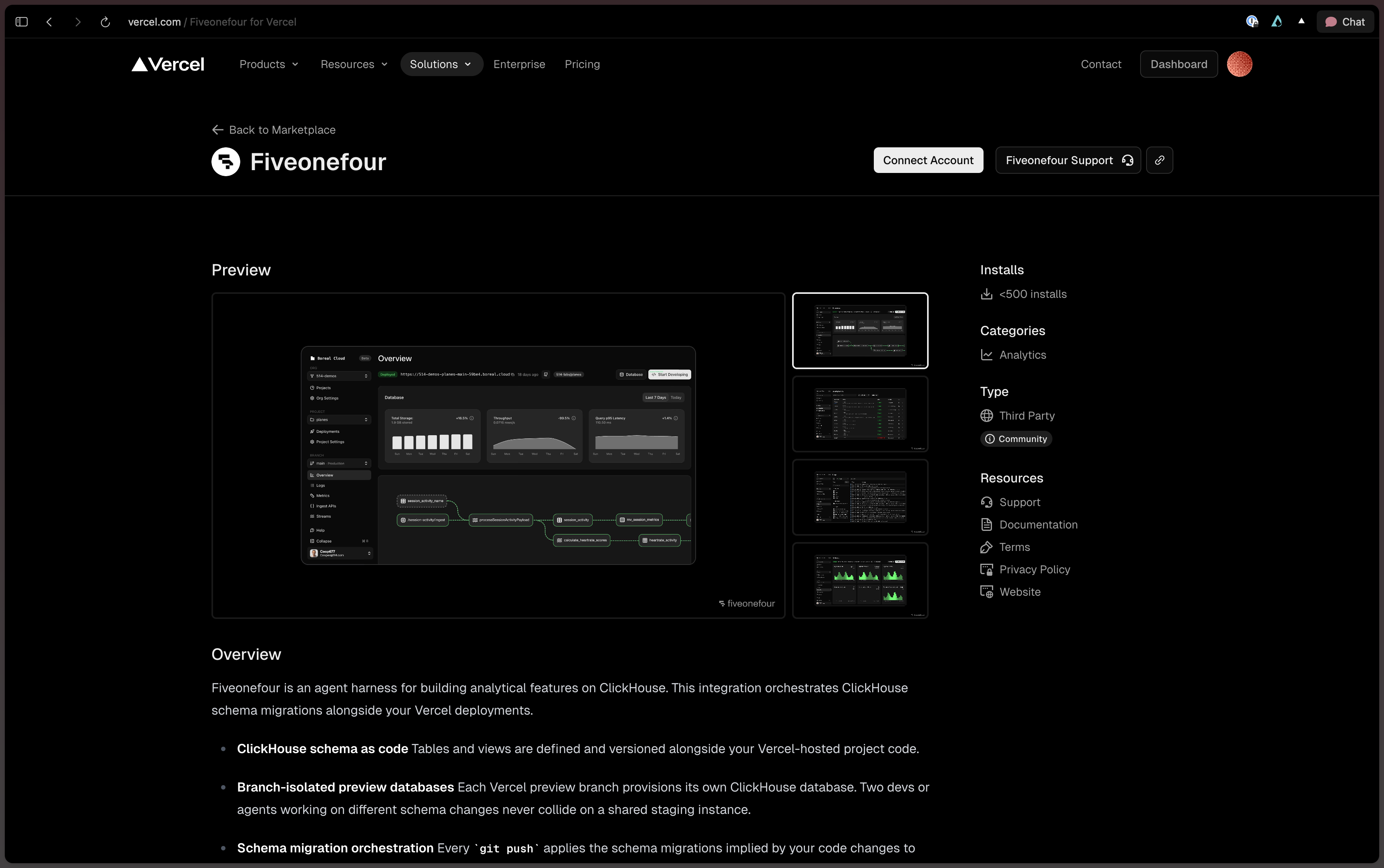
Sign in to Fiveonefour and open the project overview for the project you want to link to Vercel. On that overview page, find the Vercel integration card and click Connect Account.

Expected result: Fiveonefour opens the Vercel Marketplace listing for the Fiveonefour integration.
2. Authorize in Vercel
You should land on the Fiveonefour integration in the Vercel Marketplace page. Click Connect Account and authorize the integration for the account or team that owns the frontend project.
Expected result: after authorization, switch back to the Fiveonefour project overview tab where you started. The Vercel integration card should refresh to show that the account is connected. If it does not refresh, reload the project overview and check again.
3. Select the Vercel project
On the Fiveonefour project overview, use the Vercel integration card to choose which Vercel project to link. Select the project you came here to connect to this Fiveonefour project. If this is a monorepo, verify the root directory before you continue.

4. Link the project
After you select the Vercel project, click Link Project in the integration card to save the connection.
Expected result: the Fiveonefour project overview shows the linked Vercel project under the Fiveonefour project.

Verify with your first preview deployment
The fastest way to prove the integration is working is to push a frontend-only branch. You do not need a schema change for this first check.
- Create a short-lived branch from your default branch.
git checkout -b feature/test-preview-integration-
Make a small frontend change, such as copy text or UI text that is easy to recognize in a preview.
-
Push the branch.
git add .
git commit -m "Add test preview integration"
git push origin feature/test-preview-integration- Go to your Fiveonefour project deployment page and confirm the preview deployment was created. You should see a new deployment with the branch name you pushed and the commit message you used.
- Open the Vercel preview and confirm the branch is using the linked Fiveonefour preview path, not production.
- Confirm the Vercel deployment waits for the linked Fiveonefour deployment before it finishes.
- If your team shares environment configuration, confirm the expected values appear in the linked environment.
This is the first concrete payoff: one push, one coordinated preview flow, and no manual environment rewiring.
Frontend auth is still your responsibility
This integration coordinates deployment behavior. It does not replace authentication, deployment protection, or access control in Vercel.